
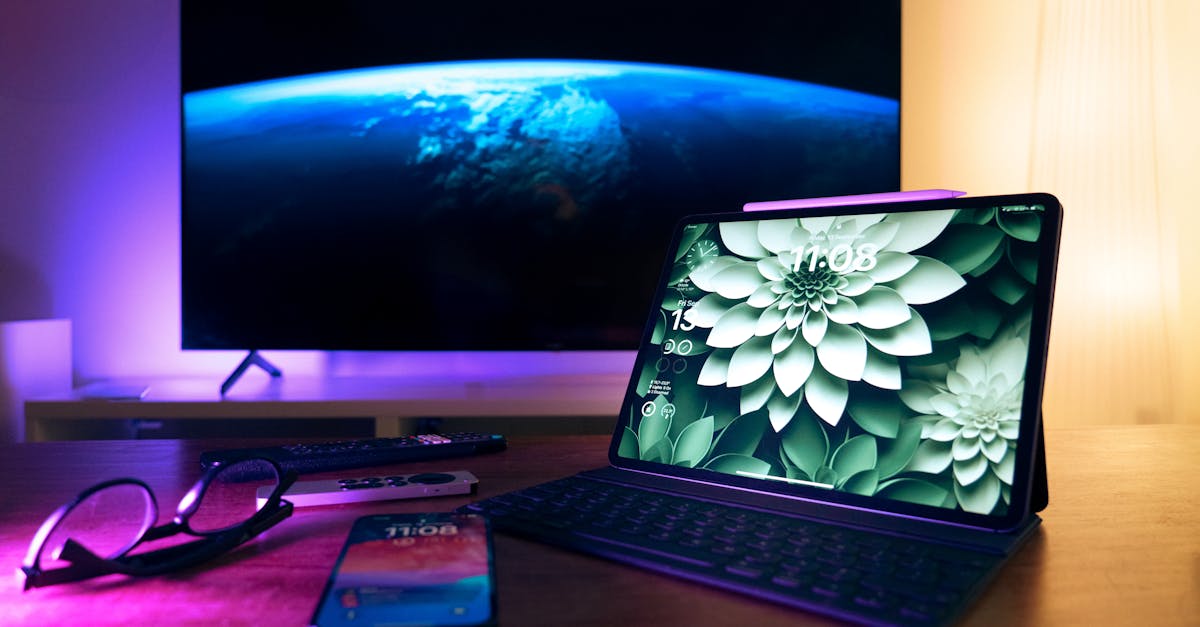
In a world where binge-watching is a competitive sport, nothing beats the thrill of casting your favorite shows from an iPhone to an LG TV. Imagine transforming your living room into a cinematic paradise with just a few taps. It’s like magic, but without the wands and capes.
Table of Contents
ToggleUnderstanding AirPlay
AirPlay simplifies streaming content from an iPhone to an LG TV. This feature allows users to enjoy media seamlessly in a larger format.
What Is AirPlay?
AirPlay is a proprietary protocol developed by Apple for wireless streaming. This technology enables users to stream audio, video, and photos from Apple devices to compatible devices like LG TVs. Devices connected to the same Wi-Fi network can communicate easily. AirPlay eliminates the need for cables or adapters. Many apps support AirPlay, making it versatile for sharing various media types. Users appreciate the straightforward setup, which enhances their overall experience.
Benefits of AirPlay
AirPlay offers multiple advantages for users streaming from an iPhone. Streamlined usability stands out as a significant benefit, making it easy to connect devices. High-quality audio and video performance ensures an enjoyable viewing experience. Compatibility with various apps like YouTube and Netflix enhances the versatility of content access. Users appreciate the ability to mirror their iPhone screens, showcasing photos or presentations on larger displays. Additionally, AirPlay operates over Wi-Fi, freeing users from distance limitations typically associated with Bluetooth connections. The overall experience transforms home entertainment into a more dynamic, interactive event.
Setting Up Your LG TV
Setting up an LG TV for AirPlay streaming involves a few simple steps. The process ensures smooth connectivity between the iPhone and the TV.
Checking for AirPlay Compatibility
Confirm whether the LG TV supports AirPlay 2. Most LG Smart TVs from 2019 and later have this feature built-in. Checking the model number helps determine compatibility. Users can find this number on the back of the TV, in the settings menu, or on the original packaging. If the TV displays the AirPlay option in the settings, it is compatible. This ensures easy access to streaming multimedia content from an iPhone.
Connecting to Wi-Fi
Establishing a stable Wi-Fi connection is essential. Connect both the LG TV and the iPhone to the same Wi-Fi network for seamless streaming. Go into the settings on the LG TV and select the network settings menu. Choose the Wi-Fi network and enter the password for connection. After successful connection, the TV should display the network status. This step ensures the devices recognize each other for AirPlay functionality.
How to AirPlay to LG TV From iPhone
AirPlaying content from an iPhone to an LG TV is straightforward. Users enjoy seamless streaming with just a tap.
Using Control Center
Accessing the Control Center enhances the AirPlay experience. Swipe down from the upper right corner of the screen on newer iPhones or swipe up from the bottom on older models. Next, tap on the AirPlay icon, often represented as a triangle with circles. Select the LG TV from the list of available devices. Adjust the volume using the volume slider if needed. Once connected, users can enjoy their media on a larger screen.
Streaming Content from Apps
Streaming content directly from apps adds convenience. Launch a compatible app, such as YouTube or Netflix, on the iPhone. Look for the AirPlay icon within the app, usually located in the video player or by tapping the share button. Selecting the LG TV from the device list initiates the streaming process. Content plays seamlessly on the TV, providing a richer viewing experience. This method supports high-quality audio and video, ensuring satisfaction during movie nights or binge-watching sessions.
Troubleshooting AirPlay Issues
AirPlay can occasionally present challenges. Understanding common problems and their solutions can enhance the streaming experience.
Common Problems and Solutions
Some users experience difficulties with AirPlay connections. One frequent issue is when the iPhone can’t detect the LG TV. Restarting both devices often resolves this problem. Another issue involves video lag or buffering. Checking the Wi-Fi signal strength can help; a weak signal causes interruptions. Ensure the iPhone and LG TV use the same Wi-Fi network, as this syncs the devices effectively. Users may also encounter an unsupported content error. Confirming compatibility with the desired app often resolves this situation. Updating software on both the iPhone and LG TV can fix many connectivity quirks, ensuring a smooth operation.
Ensuring a Smooth Connection
Establishing a reliable connection is essential for optimal performance. Users should begin by confirming that both the iPhone and LG TV are connected to the same Wi-Fi network. Access the Wi-Fi settings on both devices for verification. Ensuring devices are updated also plays a crucial role; software updates maintain compatibility and improve performance. Restarting the router can sometimes eliminate connection issues, optimizing the streaming environment. Users may also want to reduce interference from other electronic devices, which can disrupt the Wi-Fi signal. Following these steps helps maintain a seamless AirPlay experience.
Alternative Methods to Connect iPhone to LG TV
Users can explore various methods to connect an iPhone to an LG TV beyond AirPlay. Each alternative provides unique benefits tailored to different preferences.
Using HDMI Cables
Connecting an iPhone to an LG TV through HDMI cables offers a reliable, wired option. An HDMI adapter, typically a Lightning to HDMI adapter, connects directly to the iPhone. After connecting the adapter, users plug one end into the iPhone and the other into the TV’s HDMI port. Selecting the correct HDMI input on the TV enables a seamless display of the iPhone screen. This method supports high-definition audio and video without the potential lag sometimes experienced with wireless streaming.
Third-Party Apps
Exploring third-party apps presents another route for users looking to stream content. Several apps facilitate screen mirroring or streaming from an iPhone to an LG TV. Popular options include AllCast, Mirror for LG TV, and AirBeamTV. After downloading the chosen app, users must connect their iPhone and LG TV to the same Wi-Fi network. Following connection, they can initiate the app to access media files and stream content effortlessly. These apps typically offer user-friendly interfaces and support various media formats, enhancing the viewing experience.
Streaming from an iPhone to an LG TV opens up a world of entertainment possibilities. With AirPlay users can enjoy their favorite shows and movies seamlessly without the hassle of cables. The straightforward setup process and compatibility with popular apps enhance the viewing experience significantly.
For those who encounter issues the troubleshooting tips provided can help maintain a smooth connection. Exploring alternative methods like HDMI cables or third-party apps further enriches the options available for connecting devices. Whether it’s a movie night or binge-watching session the integration of iPhone and LG TV makes home entertainment more enjoyable and accessible.

